How to play internet radio in your car
How to play internet radio in your car on Android: the app, the Bluetooth setup, saving stations for safe glanceable control, and handling dead spots.
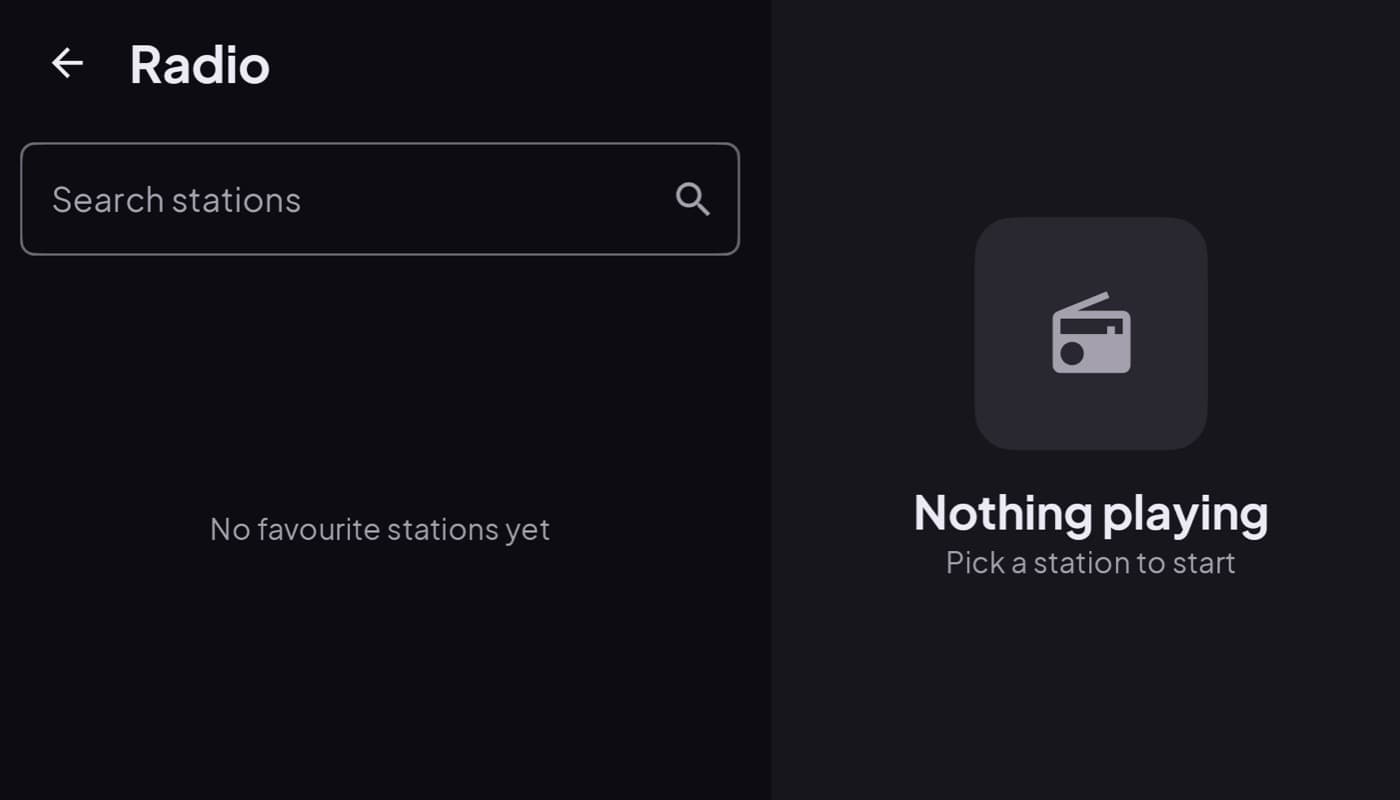
Internet radio turns your phone into a world radio: thousands of stations, your hometown channel on a road trip, ad-light genre streams, talk from other countries. Getting it into your car is easy once you know the three pieces. Here is the whole setup, done safely.
We make a dashboard app with radio built in (Car Dashboard), but this works with any internet radio app.
The three pieces you need
- A radio app on your phone (or a dashboard app with radio built in).
- A way to reach your speakers, almost always Bluetooth, sometimes an aux cable or USB.
- Mobile data, because internet radio streams over the internet.
Step 1: connect the phone to your speakers
- Bluetooth (best): pair the phone once in your car's Bluetooth menu; after that it connects automatically each drive.
- Aux cable: if your car has a 3.5mm input, a cable works and never drops.
- USB: some head units play audio from a connected phone.
Bluetooth is the cleanest for most people, no cable, auto-connect, wheel controls.
Step 2: set up your stations before you drive
This is the safety step everyone skips. Open your radio app parked, find the stations you like, and save them as favorites. Now, on the road, playing a station is one big tap, not a search. Never hunt for a station while moving.
Step 3: make the controls glanceable
In the car you want play, pause and next-station as big targets. A phone-couch radio app with tiny buttons is a hazard on a mount. This is where a car dashboard helps: it puts big radio controls on the same screen as your speed and map, so you are not switching apps.
Car Dashboard has an internet radio tuner right in the cockpit, browse and favorite stations parked, then play with one big tap while the dashboard stays on screen, dark night theme included. Coming soon on Google Play.
Step 4: plan for dead spots
Internet radio needs signal. On a long rural stretch it will drop out. Two habits help:
- Pick an app that reconnects automatically when signal returns, so you are not left in silence.
- On known dead routes, keep a downloaded playlist or FM as a backup.
Step 5: mind your data
A typical stream uses roughly 50 to 150 MB per hour, easy on most plans, worth watching on a capped one. Lower the stream quality if you are tight on data; for spoken radio you will not notice.
The short version: pair the phone to your speakers, save your stations while parked, use big glanceable controls, and expect the odd drop-out. Best of all, put the radio on the same screen as your map and speed, which is exactly what Car Dashboard does.
Frequently asked questions
- How do I play internet radio in my car?
- Install an internet radio app (or a dashboard app with radio built in), connect your phone to the car speakers, usually via Bluetooth, and make sure you have mobile data. Save your favorite stations while parked so you can play them with one tap while driving.
- Does internet radio in the car use a lot of data?
- A typical stream uses about 50 to 150 MB per hour depending on quality, much less than video. That's comfortable on most plans for a daily commute; on a capped plan, lower the stream quality, which is barely noticeable for talk radio.
- What happens to internet radio when I lose signal?
- It pauses, since it needs a connection. A good app reconnects automatically when signal returns so you're not stuck in silence. On long rural routes with no coverage, keep a downloaded playlist or FM as a backup.
Turn your phone into the cockpit
Car Dashboard puts a big glanceable speedometer, maps, music and hands-free calling on one dark, landscape screen, in any car. Coming soon on Google Play. Join the waitlist for launch.
Get notified the day it lands on Google Play. No spam, one email.